

Screens & Filters
The vault grid can display hundreds of vaults at once. Screens and filters are the tools you use to cut through the noise and focus on what matters.
Filters narrow down the vault list in real time. Screens save your entire grid configuration — columns, sort order, filters, the works — so you can jump back to a specific view instantly.
Filter Vaults by Any Column
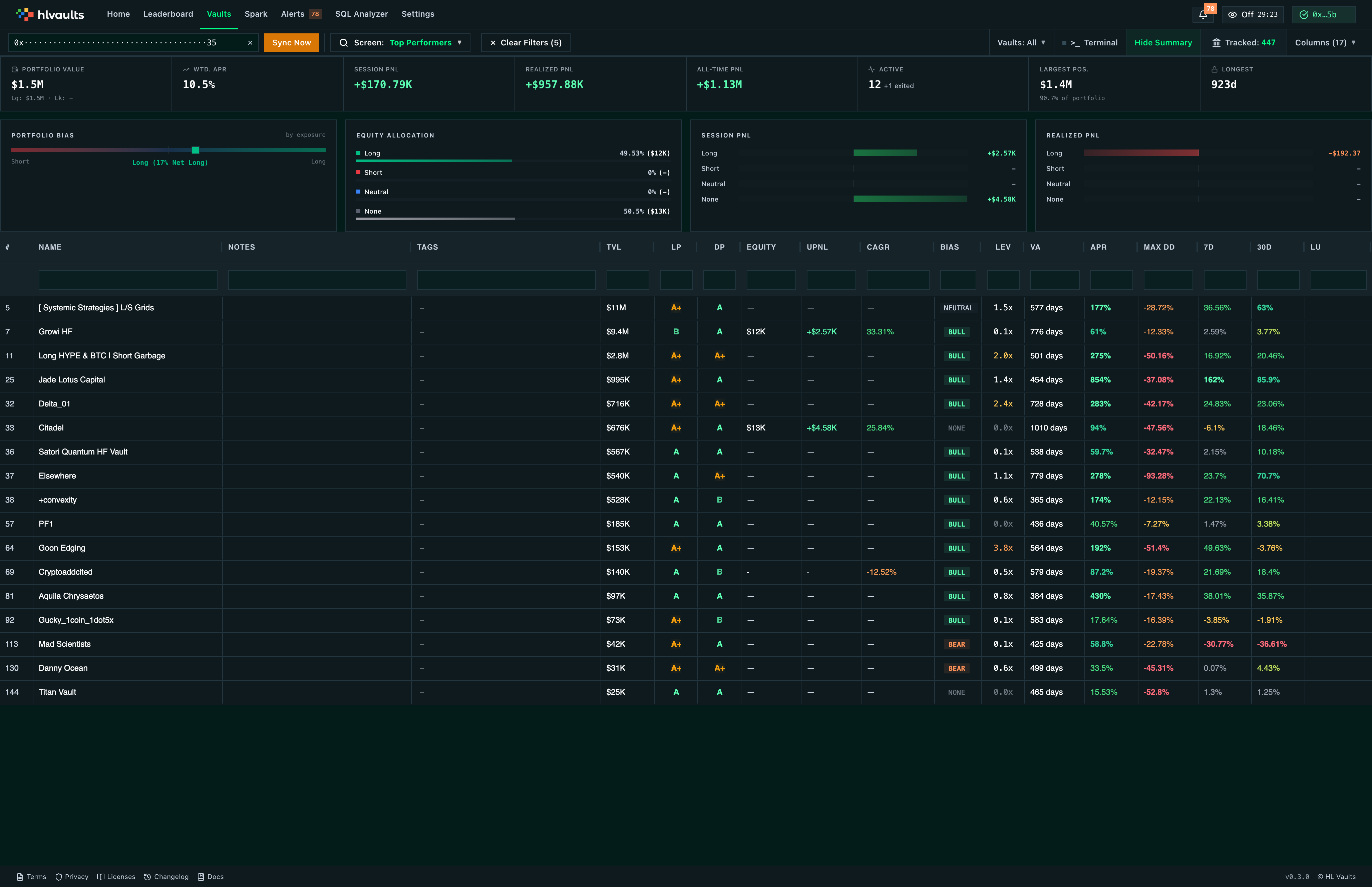
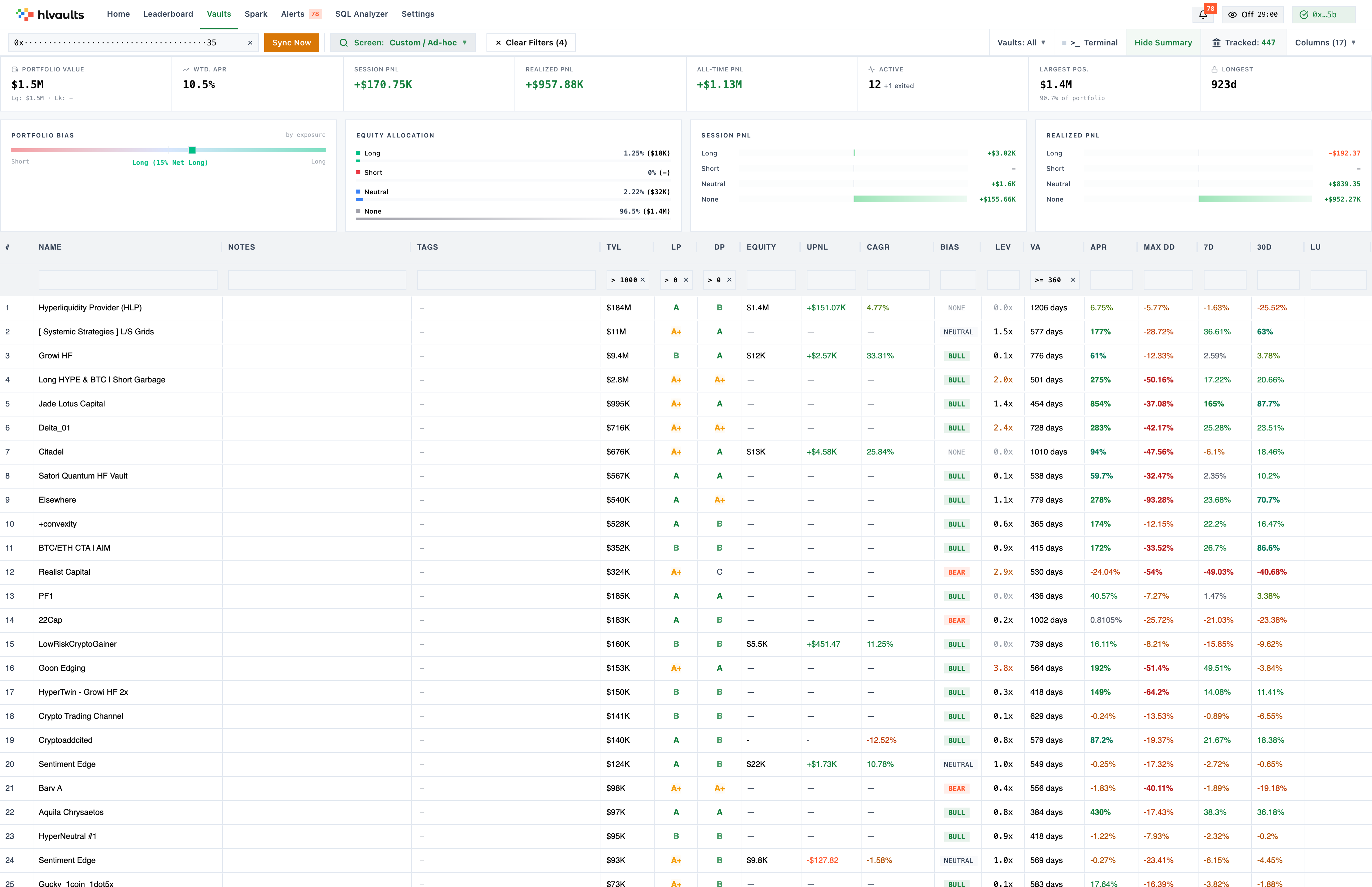
Section titled “Filter Vaults by Any Column”Every column in the grid doubles as a filter. Type directly into the per-column filter row under each column header to add a condition.
Basic filters — simple operators like greater than, less than, or equals — are available on all plans. Growth Advanced expression filters (OR/AND combinations, custom expressions) require Growth or higher, and the Free plan is limited to one active filter at a time.
| Column Type | Operators |
|---|---|
| Currency (TVL, Equity, PnL) | Greater than, Less than, Between, Equal |
| Percent (APR, ROI, Max DD) | Greater than, Less than, Between |
| Text (Name, Description) | Contains, Does not contain, Starts with |
| Grade (LP, DP) | Equal (select a grade letter) |
| Badge (Bias, Tags) | Equal / Contains |


Combine Filters for Precision
Section titled “Combine Filters for Precision”Filters are additive: a vault must match every active filter to appear in the grid. This lets you build precise, multi-dimensional queries.
For example, to find large, high-performing vaults with reasonable risk:
- TVL > $1M
- APR > 20%
- Max DD > -15%
- LP = A or A+
Each condition narrows the result set further. The more filters you add, the more targeted the view becomes.
Remove Filters
Section titled “Remove Filters”Clear all filters at once with the Clear Filters button, or remove individual filters by clicking the X on their badge.
Toggle Between Active and Inactive Vaults
Section titled “Toggle Between Active and Inactive Vaults”The vault type filter menu lets you switch between Active vaults (currently trading) and Inactive vaults (stopped trading). Available on all plans.


Search by Wallet Address
Section titled “Search by Wallet Address”Wallet SearchGrowth
The search bar filters the grid and vault detail to a specific wallet address (0x…). On the Free plan the search is locked to your connected wallet; Growth or higher unlocks lookup of any address. There is no name-based vault search — use the per-column contains filter to match vault names.
Save and Switch Between Grid Configurations
Section titled “Save and Switch Between Grid Configurations”A screen is a saved snapshot of your current grid setup. It captures:
- Which columns are visible and in what order
- Column widths
- Sort column and direction
- All active filters
- Vault type filter
Screens let you switch between different analytical views without rebuilding them each time.
Plan Limits
Section titled “Plan Limits”Create a Screen
Section titled “Create a Screen”- Configure the grid the way you want it (columns, sort, filters)
- Click the screen selector (shows “My Screen” or current name)
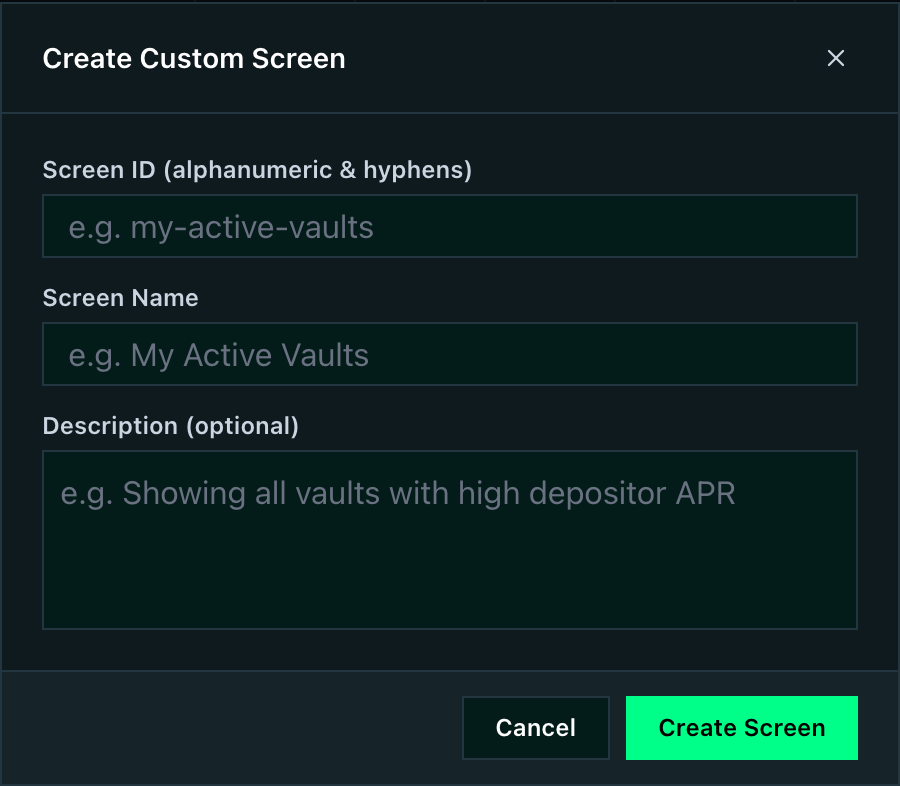
- Click “Save As…”
- Enter a name and save
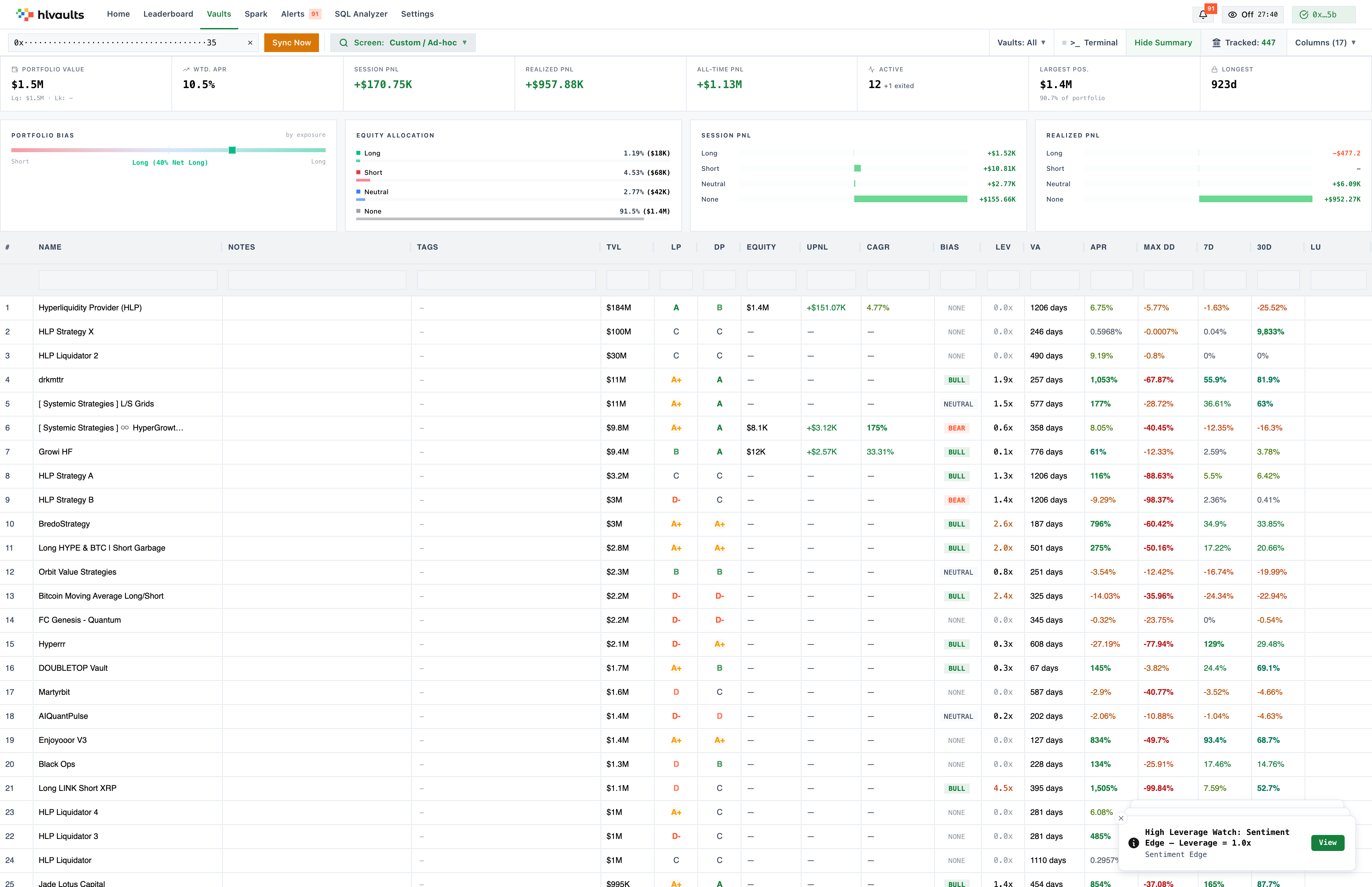
Your screen appears in the screen selector dropdown immediately.
Built-In Screens
Section titled “Built-In Screens”The app ships with several pre-built screens:
| Screen | What it shows |
|---|---|
| Default | The standard starting grid (vaults with meaningful track records, oldest first) |
| Top Performers | Mature vaults (360+ days) with strong LP, DP, and APR, sorted by TVL |
| Superstars | Mature vaults with consistent depositor returns (DP > 20, APR > 10) |
| My Vaults | Only vaults you have equity in, sorted by your equity size |
| My Unlocked Vaults | Your vaults that are no longer in lockup |
Manage Screens
Section titled “Manage Screens”- Switch between screens using the dropdown.
- Update a screen by saving under the same name.
- Delete unwanted screens from the dropdown menu.
Screens are stored locally in your browser. They do not sync across devices.
Example Workflows
Section titled “Example Workflows”Find Conservative Vaults with Good Returns
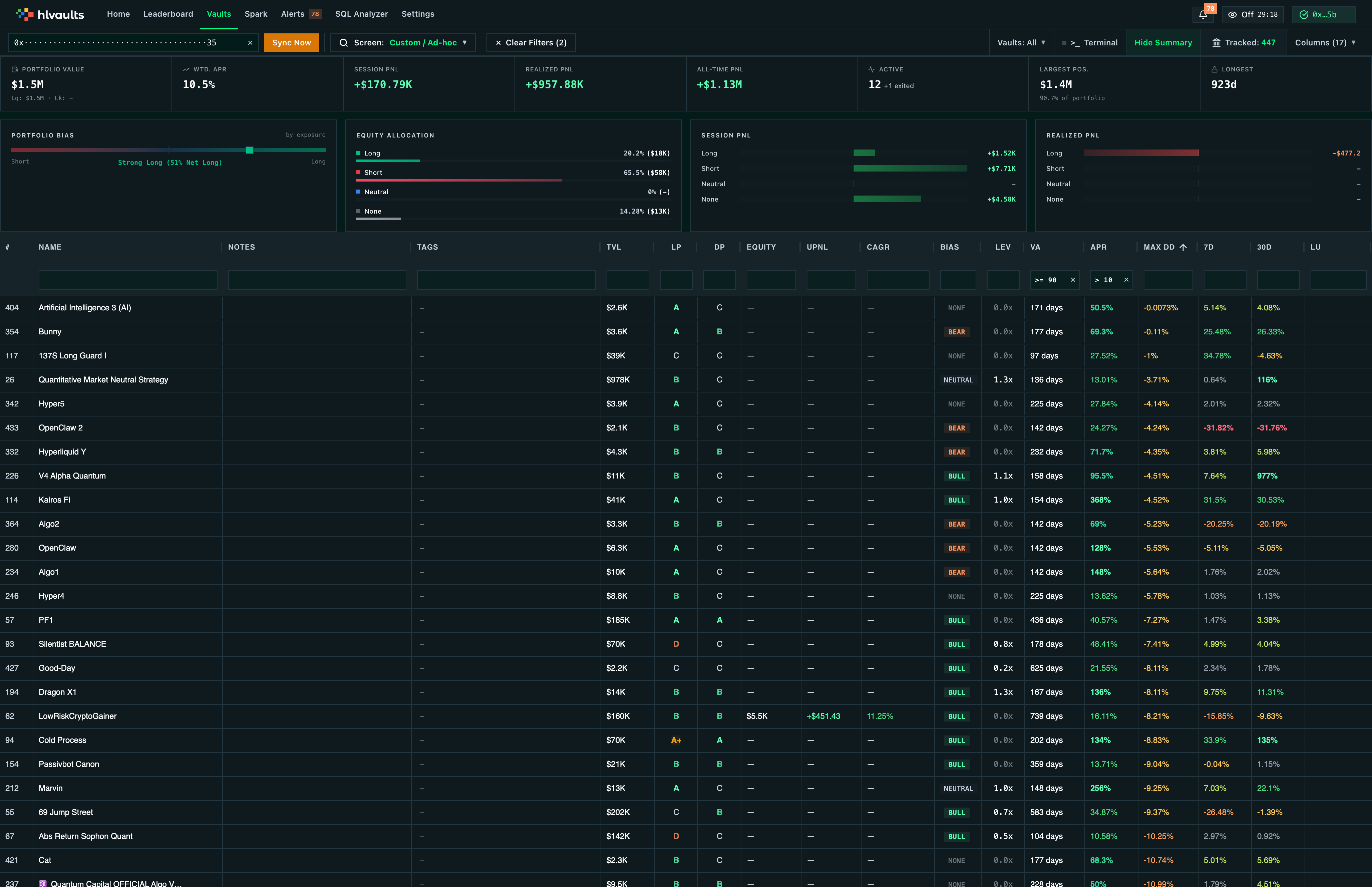
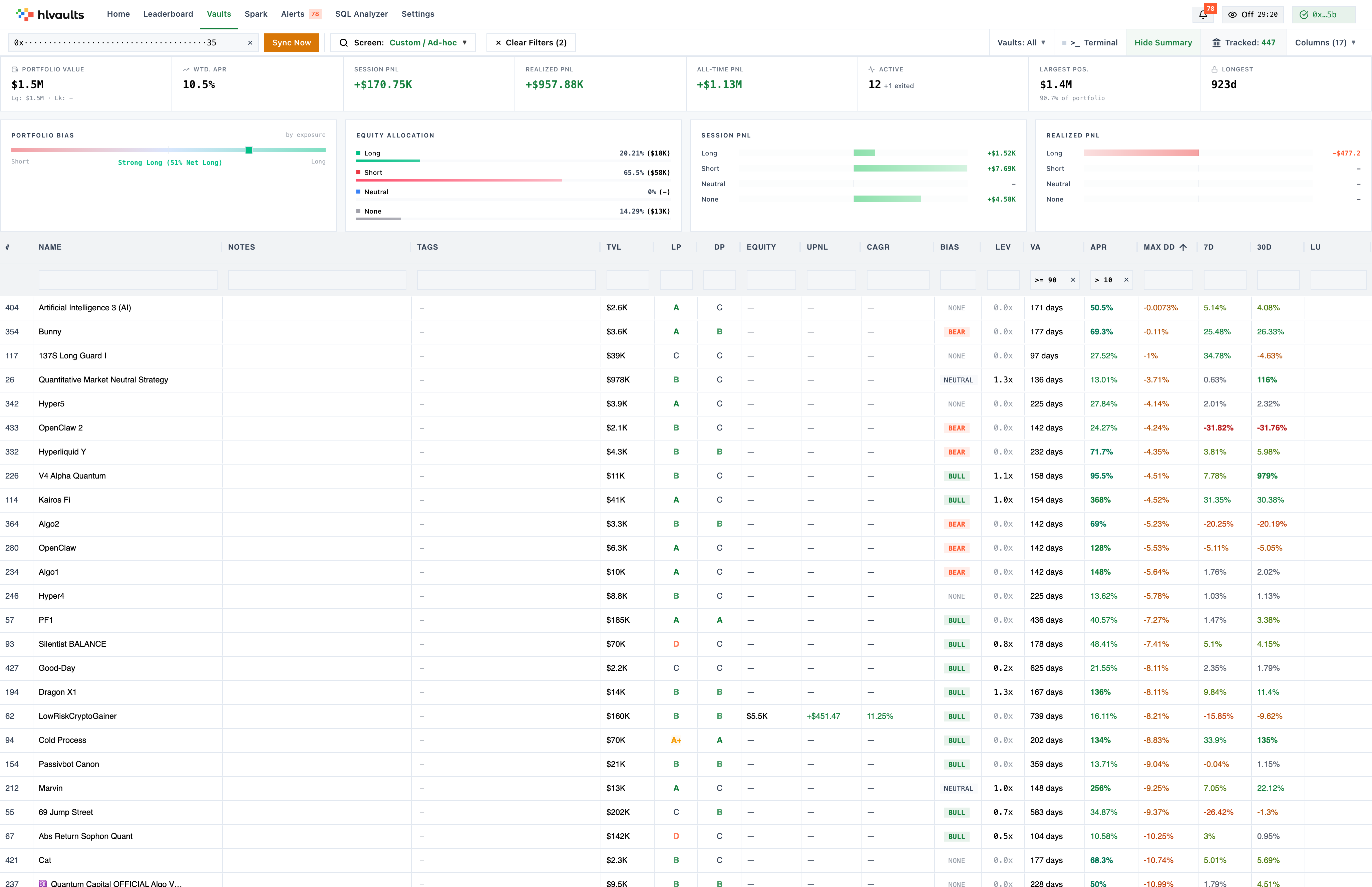
Section titled “Find Conservative Vaults with Good Returns”- Sort by Max DD ascending (lowest drawdown first).
- Add filter: APR > 10%.
- Add filter: Vault Age > 90 days.
- Save as screen: “Conservative Performers”.
Build a Watchlist
Section titled “Build a Watchlist”- Show all columns: Tags, LP, DP, Leverage, Bias.
- Set vault type to Active.
- Sort by TVL descending.
- Save as screen: “Watchlist”.
Run Due Diligence on a Specific Vault
Section titled “Run Due Diligence on a Specific Vault”- Click the vault name to open the detail page.
- Review the KPI strip at the top.
- Scroll through the Summary tab for key stats.
- Check the Depositors tab for concentration.
- Open the Intelligence panel for signals. ★ Pro
Related
Section titled “Related”- Getting Started — first steps with the app
- Column Reference — understand every column